
ContentBarrier
Intego
Screenshots


App details
- Version
- X 4 | 10.6.6
- Size
- 23.76 MB
- Updated
- September 21, 2006
- Requires
- Mac OS X
- Language
- English
- License
- Trial version
- Developer
- Intego
- Category
- Mac OS
SoftPas in:
This product is also available in the following languages:
About ContentBarrier
Download ContentBarrier – Parental Control, Internet Monitoring & Safe Browsing for Mac
Overview
ContentBarrier, developed by Intego, is a comprehensive parental‑control suite designed specifically for macOS. In an age where children can wander into risky corners of the web with a single click, this tool gives parents the confidence to monitor, restrict, and guide online activity without constantly hovering over a screen. The software combines real‑time monitoring with flexible access levels, allowing each family member to have a personalized browsing experience that matches their age and maturity. From blocking file‑sharing services and newsgroups to filtering predatory language in chats, ContentBarrier covers the full spectrum of potential threats. Its intuitive dashboard makes it easy to see which applications are being used, which websites are visited, and even which emails contain suspicious content. While the initial installation process may feel a bit involved, once set up the program runs silently in the background, delivering instant protection and peace of mind. Whether you’re a tech‑savvy parent or a first‑time user, ContentBarrier aims to be the one‑stop solution for safeguarding kids on the internet while keeping the Mac’s performance intact.
Key Features
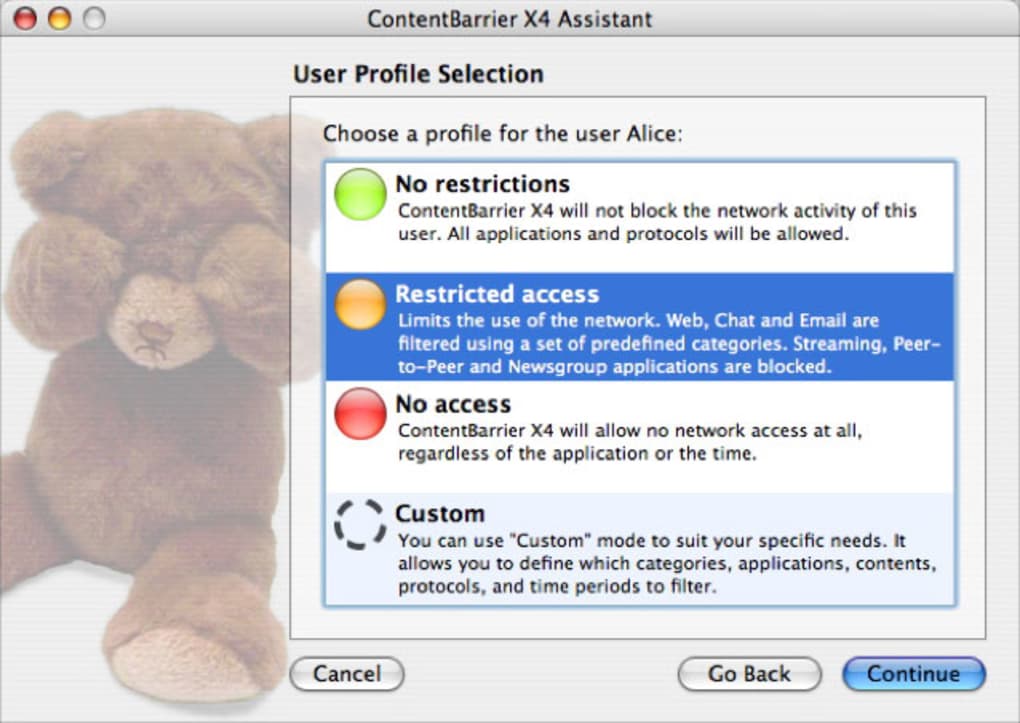
- Customizable User Profiles: Create separate access levels for each child, from full internet freedom for teenagers to strict white‑list browsing for younger kids.
- Web Filtering Engine: Blocks adult content, gambling sites, and violent media using a constantly updated database of risky URLs.
- Chat & Language Monitoring: Scans instant‑messaging apps, social media chats, and forums for predatory language, profanity, or grooming attempts.
- Email Surveillance: Monitors inbound and outbound emails for inappropriate attachments, phishing links, and suspicious keywords.
- File‑Sharing & P2P Blocker: Prevents access to BitTorrent, uTorrent, and other peer‑to‑peer clients that could expose kids to illegal downloads.
- Media Control: Blocks streaming video and music platforms during homework hours or bedtime, helping enforce healthy screen habits.
- Real‑Time Alerts & Reports: Sends push notifications to your iPhone or Mac whenever a policy violation occurs, and generates weekly activity summaries.
- Secure Remote Management: Adjust settings from anywhere using a web‑based admin console, perfect for parents on the go.
- Automatic Updates: Receives regular security signature updates to stay ahead of new threats without manual intervention.
- Ease of Use: Drag‑and‑drop interface for whitelist/blacklist management, with clear visual indicators for each user’s protection status.
Installation & Usage Instructions
Getting ContentBarrier up and running is straightforward, though it does require a few deliberate steps to ensure maximum security. Follow this guide to install and configure the software on your Mac:
- Download the Installer: Visit the official Intego website and click the “Download ContentBarrier” button. The file is a signed .dmg package, guaranteeing a secure download.
- Run the Installer: Open the .dmg and drag the ContentBarrier icon into your Applications folder. You will be prompted to enter your administrator password – this is required to install kernel extensions that monitor system traffic.
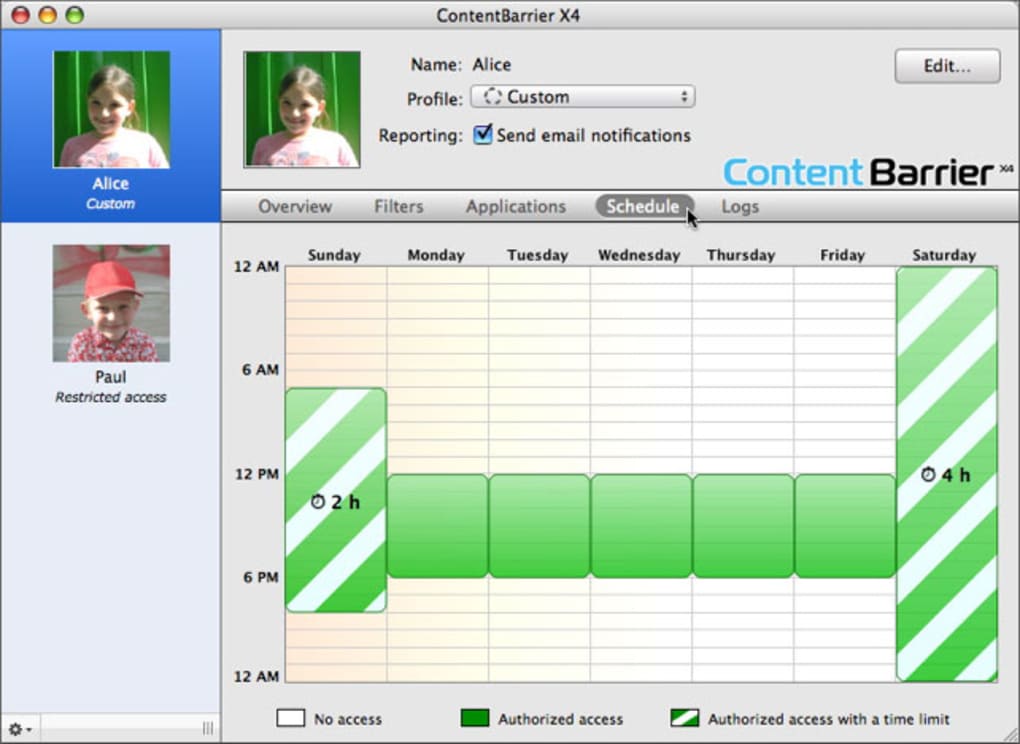
- Initial Setup Wizard: Launch ContentBarrier. The first‑time wizard walks you through creating an administrator account, selecting the default protection level, and adding child user accounts. Each profile can be customized with time limits, allowed websites, and specific app permissions.
- Configure Filters: Navigate to the “Filters” tab. Here you can enable the web filter, chat monitor, email scanner, and media blocker. Use the pre‑built templates for “Elementary,” “Middle School,” or “High School” or build your own rule set.
- Set Up Alerts: In the “Notifications” section, choose how you’d like to be alerted – via email, push notification, or a simple macOS banner. You can also define the severity level that triggers an alert.
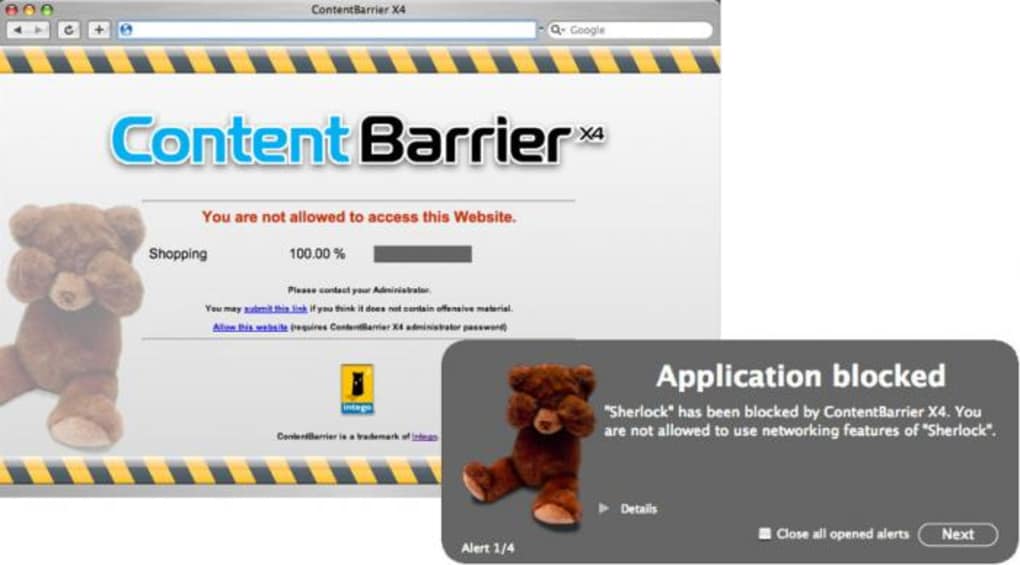
- Test the System: Log in as one of the child accounts and attempt to access a blocked site or application. ContentBarrier should instantly intervene, displaying a friendly “Access Denied” message.
- Fine‑Tune Settings: After a week of observation, revisit the dashboard to adjust any overly restrictive rules or add new whitelisted sites that are appropriate for your child’s age.
- Uninstallation (if needed): Open the ContentBarrier app, go to “Help > Uninstall.” Follow the prompts; the process removes all kernel extensions and user profiles, ensuring no residual files remain.
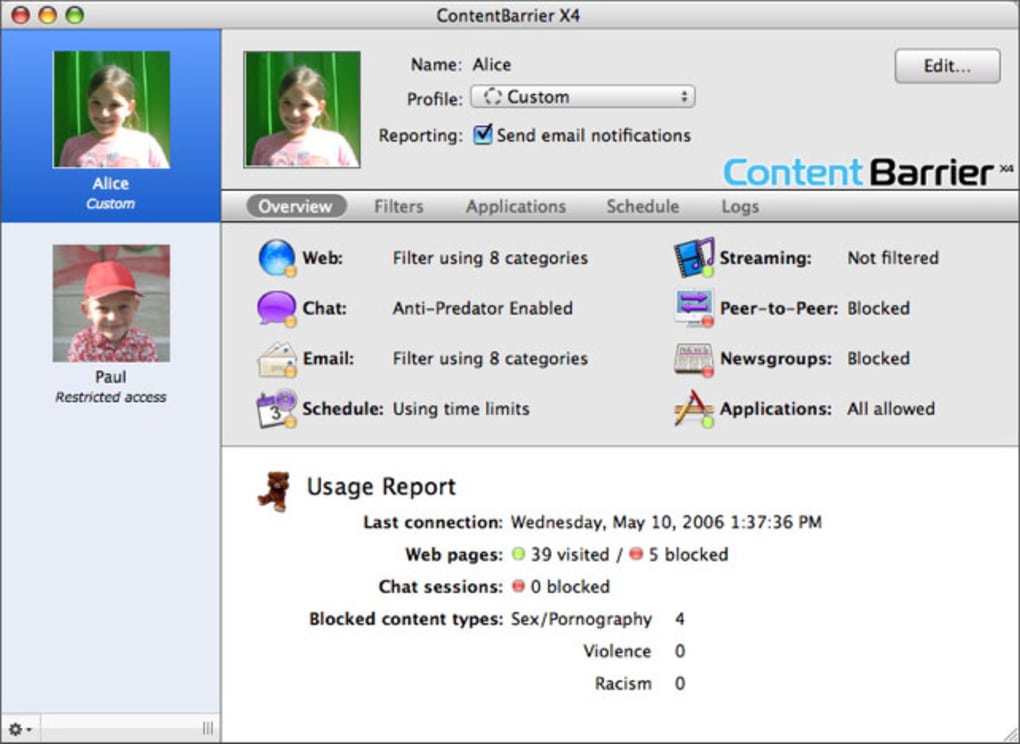
While the installation may feel a bit lengthy due to security checks, the effort pays off with a robust, low‑maintenance solution that protects your family 24/7. Once configured, the interface is intuitive: a single glance at the dashboard shows real‑time activity, and any policy breach is logged for later review.
Compatibility & System Requirements
ContentBarrier is built exclusively for macOS, supporting the latest versions as well as several legacy releases. Below are the minimum and recommended specifications:
- Supported macOS Versions: macOS 12 Monterey, macOS 13 Ventura, and macOS 14 Sonoma. Older versions back to macOS 10.15 Catalina are partially supported, though some advanced features may be limited.
- Processor: Intel Core i5 or newer, or Apple Silicon M1/M2 chips (native ARM support).
- RAM: Minimum 4 GB, recommended 8 GB for smooth background scanning.
- Disk Space: At least 250 MB of free storage for the application and a modest amount for log files.
- Internet Connection: Required for signature updates, remote management, and real‑time threat database syncing.
- Additional Permissions: The app requires Full Disk Access and Network Extension permissions to monitor file sharing, email traffic, and web requests.
Because ContentBarrier integrates deeply with the macOS networking stack, it runs efficiently on both Intel‑based Macs and the newer Apple Silicon devices. Users with older hardware should still expect reliable performance, though the real‑time alert system may have a slight delay under heavy load. The software is not available for Windows, Android, or iOS, but Intego offers a companion mobile app that lets parents receive push notifications on iPhone or iPad.
Pros, Cons & Frequently Asked Questions
Pros
- Granular control over individual user profiles.
- Comprehensive monitoring of web, chat, email, and media.
- Regular automatic updates keep threat database current.
- Remote management via web console or mobile app.
- Clear, user‑friendly dashboard with real‑time alerts.
Cons
- Installation can be lengthy due to required system permissions.
- No native Windows or Android version (Mac‑only).
- Initial learning curve for parents unfamiliar with networking concepts.
- Advanced features such as remote console require a paid subscription.
FAQ
Is ContentBarrier a free tool?
ContentBarrier offers a 14‑day free trial. After the trial, a yearly subscription is required to keep the software active and receive updates.
Can I block specific apps like Discord or Snapchat?
Yes. The application‑level blocker lets you create whitelist or blacklist rules for any installed program, including Discord, Snapchat, or gaming platforms.
How does ContentBarrier handle encrypted traffic (HTTPS)?
The software uses a local SSL/TLS inspection proxy that decrypts, scans, and re‑encrypts traffic on the fly, ensuring that HTTPS sites are filtered just like HTTP pages.
Will ContentBarrier slow down my Mac?
Performance impact is minimal. The app runs as a background service with low CPU usage, and modern Macs (Intel or Apple Silicon) handle the real‑time scanning without noticeable lag.
Can I receive alerts on my iPhone?
Yes. By installing the free Intego Mobile Companion app on iOS, you can receive push notifications, view activity logs, and adjust basic settings from your phone.
Review Summary
Rating: 4.5/5
ContentBarrier delivers a powerful blend of parental‑control features tailored for macOS. Its depth of monitoring—covering web, chat, email, and media—sets it apart from generic free solutions. While the setup requires a few extra steps, the payoff in security and peace of mind is well worth it for families looking to protect children online.
Conclusion & Call to Action
In an increasingly connected world, protecting children from inappropriate content, cyber‑bullying, and online predators is a top priority for any responsible parent. ContentBarrier offers a comprehensive, Mac‑focused solution that blends robust filtering, real‑time alerts, and granular user controls into a single, easy‑to‑manage package. Although the installation process can feel a bit involved and the software is limited to macOS, the depth of protection and the flexibility to tailor each child’s experience make it a worthwhile investment. If you’re ready to take control of your family’s digital environment, download the free trial today, set up your custom profiles, and experience a safer internet for your kids.
Guides & Tutorials
How to install ContentBarrier
- Click the Download button above.
- Once redirected, accept the terms and click Install.
- Wait for the ContentBarrier download to finish on your device.
How to use ContentBarrier
This software is primarily used for its core features described above. Open the app after installation to explore its capabilities.
User Reviews
No reviews yet. Be the first to share your experience.
You may also like
more
DiffusionBee
Generate unique art with this app DiffusionBee is a free and accessible artifici...

Excire Foto Light
Organize your snapshots Excire Foto Light is a free-to-download AI -powered phot...

Topaz Photo AI
Photo enhancement tool with AI Topaz Photo AI is a premium AI image editor for P...

anonymoX
Surf anonymously with Firefox anonymoX for Firefox is an add-on that gives you f...

DownThemAll
Download Them All! Downloading anything or everything on a webpage can be a labo...
.webp)
DuckDuckGo Privacy Essentials
A free program for Mac, by DuckDuckGo, Inc.. DuckDuckGo Privacy Essentials is a...